

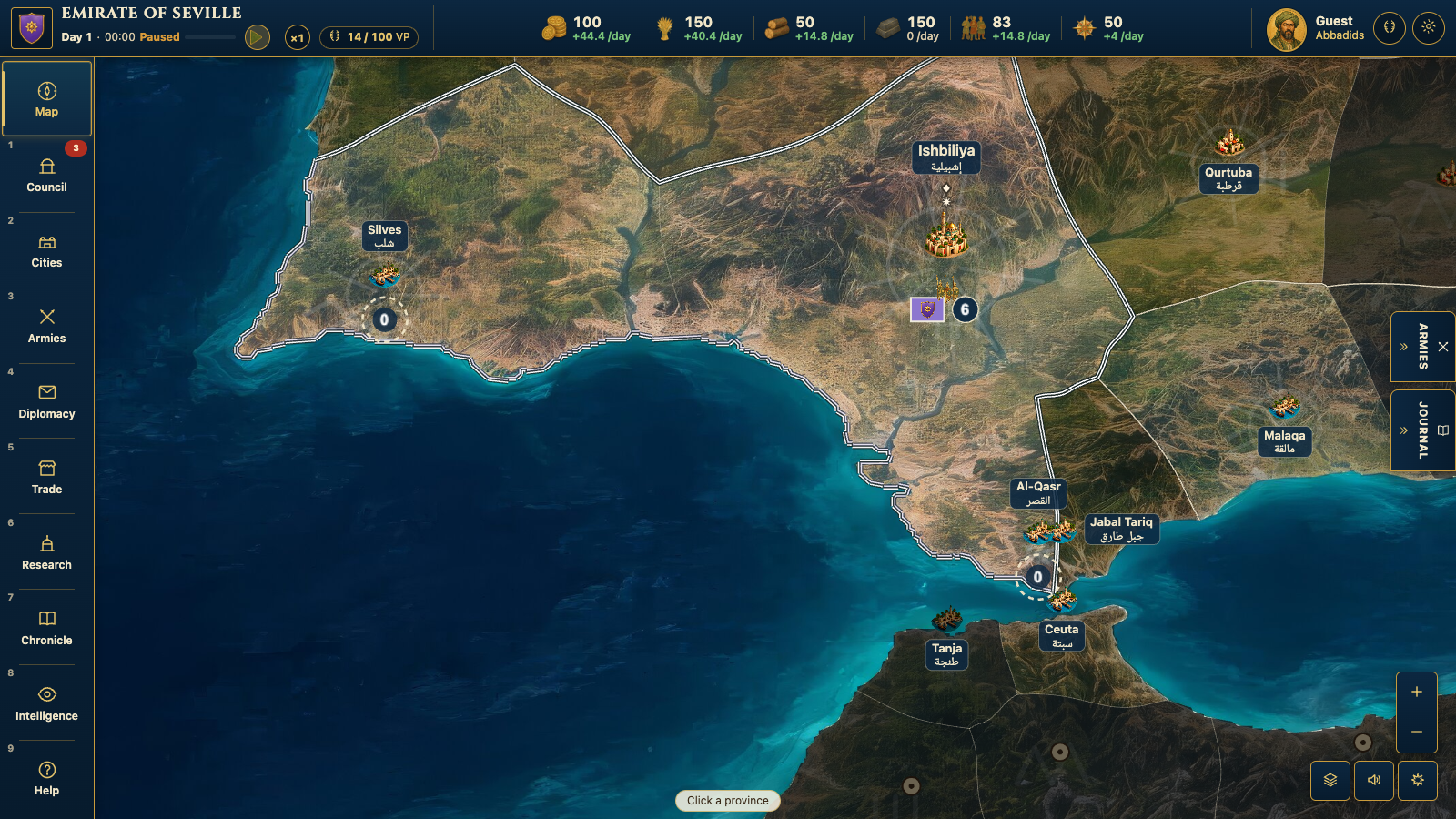
The game screen includes the map, a top bar, side navigation and panels that open when needed. In Arabic, the layout is mirrored and the navigation moves to the right.
Map screen guide
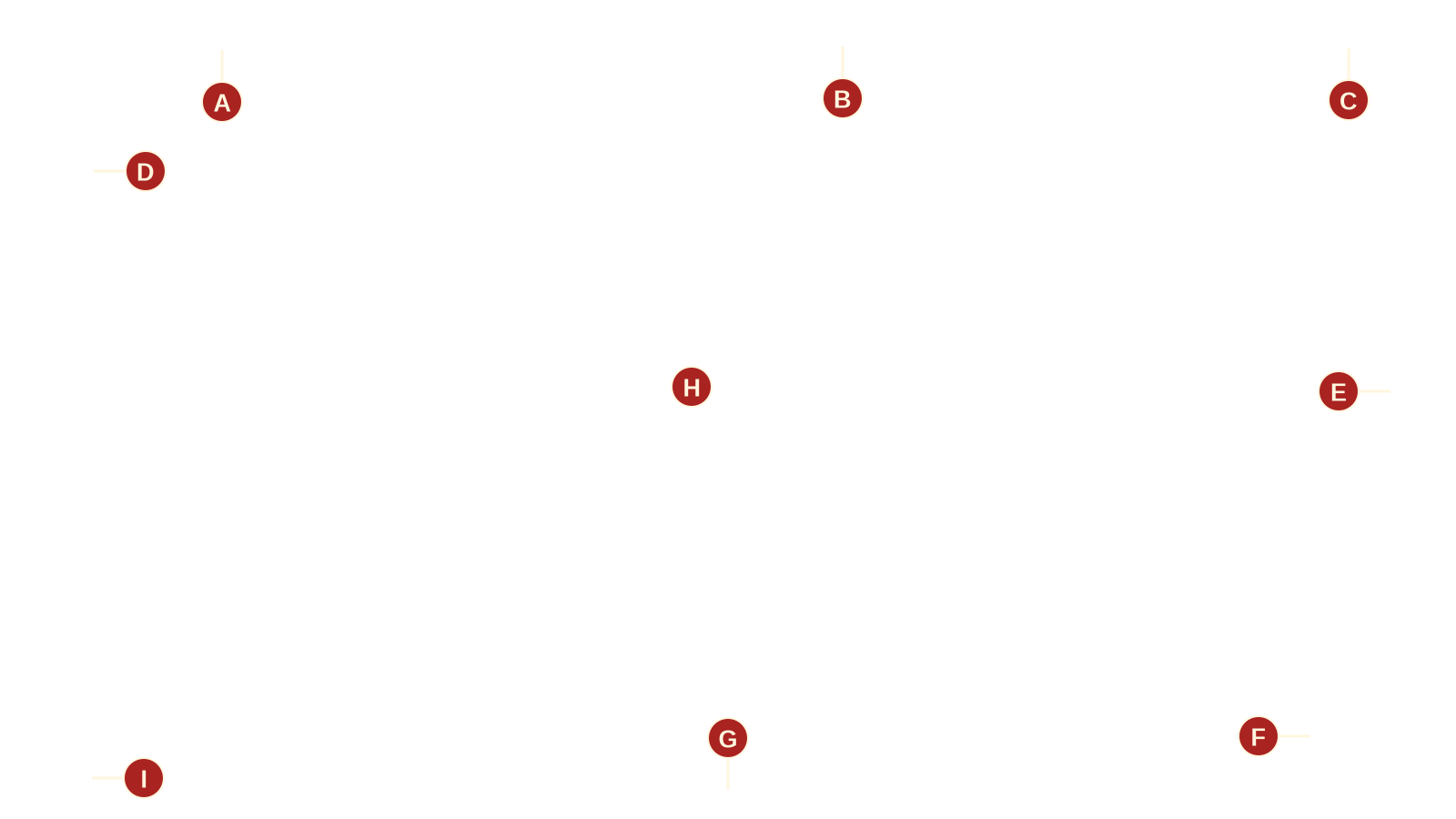
- A. Faction, game clock, speed and victory points.
- B. Resource stocks and daily gains.
- C. Player profile, ranking and options.
- D. Side navigation for the game drawers.
- E. Side tabs for armies and the journal.
- F. Zoom, map layers, sound and recentering.
- G. Prompt to select a province.
- H. Interactive map of provinces, cities and armies.
- I. In-game help.
Top bar
- Resources. See gold, food, wood, iron, manpower and legitimacy, with their daily gains.
- Time. See the game date. In solo games you can pause or speed up time here. In multiplayer the clock runs at the same pace for everyone.
Side navigation
Each entry opens a drawer. A badge marks an entry that needs your attention.
Map controls
- Select a province on the map or use Choose a province on the map with the keyboard. The province panel shows production, buildings, recruitment and status.
- Select an army on the map or in Armies to open its card and prepare orders.
- Drag to pan. Scroll or pinch to zoom.
The shortcuts guide and Options list the keyboard, mouse and touch controls.
Contextual help
The question-mark button on a province card opens the guide to provinces and cities. On an army card, it opens the units guide. The same button opens a dedicated guide in the Cities, Armies, Diplomacy, Bayt al-Hikma, Trade, Council, Intelligence, Journal and Chronicle of al-Andalus panels.